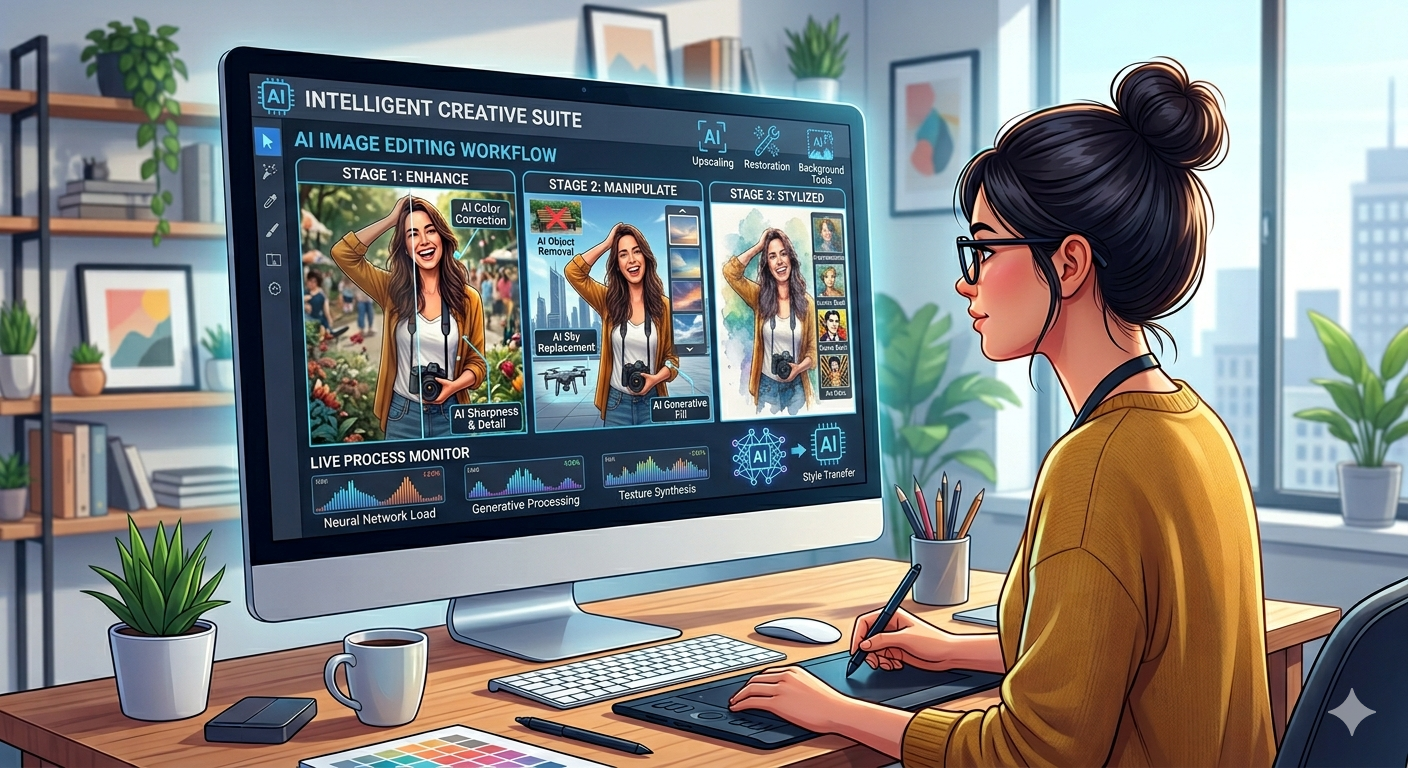
Edit photos like a pro, no experience needed
You don’t need design experience to edit photos like a pro. AI has leveled the playing field, and you can create stunning visuals with just a few clicks. Ready to get started? Let’s dive into the best AI tools for image editing beginners!
Here are the top 3 most beginner-friendly AI image editing tools:
- Canva: Drag-and-drop simplicity.
- Adobe Express: Familiar Adobe power made easy.
- Fotor: Quick edits and creative effects.
| What Makes an AI Tool Beginner-Friendly? |
A beginner-friendly AI image editing tool should have these qualities:
- One-Click or Drag-and-Drop Operation: Intuitive actions for quick results.
- Easy Sign-Up (or No Account Required): Get started immediately.
- Free Tier Available: Explore features without commitment.
- Mobile Option: Edit on the go.
- Clear, Simple Interface: No overwhelming menus or jargon.
- Undo/Redo and Preview Features: Experiment without fear.
| Top AI Tools for Beginners |
| Canva |
Beginner-Friendliness Rating: 10/10
Why it’s great for beginners: Canva is the ultimate drag-and-drop design tool. Its AI features are seamlessly integrated, making complex edits simple. No design background required!
What you can do with it:
- Remove backgrounds
- Enhance photos
- Add text and graphics
- Create social media posts
- Design presentations
Learning Curve: 5 minutes to your first edited photo.
Key Features:
- Magic Eraser: Remove unwanted elements with a brush.
- Background Remover: Instantly isolate your subject.
- Text to Image: Generate images from text prompts.
Free vs Paid: Canva offers a generous free plan. The paid version unlocks advanced features and a vast library of assets.
Beginner Verdict: Canva is the perfect starting point for anyone new to image editing. It’s user-friendly and packed with features you’ll actually use.
| Adobe Express |
Beginner-Friendliness Rating: 9/10
Why it’s great for beginners: Adobe Express brings the power of Adobe to a simplified interface. It’s a great step up from basic tools without being overwhelming.
What you can do with it:
- Edit photos
- Create graphics
- Design flyers and posters
- Make videos
Learning Curve: 15 minutes to grasp the basics.
Key Features:
- Quick Actions: One-click edits for common tasks.
- AI-Powered Templates: Jumpstart your designs.
- Adobe Fonts Integration: Access a huge library of fonts.
Free vs Paid: Adobe Express has a free plan with plenty of features. The premium plan unlocks more templates, assets, and storage.
Beginner Verdict: Adobe Express is ideal if you want more creative control than Canva but still need a user-friendly experience.
| Fotor |
Beginner-Friendliness Rating: 8/10
Why it’s great for beginners: Fotor offers a wide range of AI-powered editing tools and effects. It’s easy to experiment and find your style.
What you can do with it:
- Enhance photos
- Apply filters and effects
- Create collages
- Touch up portraits
Learning Curve: 10 minutes to start experimenting.
Key Features:
- AI Photo Enhancer: Instantly improve image quality.
- AI Portrait Touchup: Remove blemishes and smooth skin.
- One-Tap Filters: Add instant style.
Free vs Paid: Fotor’s free plan offers basic editing features. The paid plan unlocks advanced tools and removes ads.
Beginner Verdict: Fotor is a great choice for beginners who want to explore creative effects and enhance their photos quickly.
| Remove.bg |
Beginner-Friendliness Rating: 10/10
Why it’s great for beginners: Remove.bg does one thing and does it extremely well: removes backgrounds. It’s incredibly simple to use, with no editing skills required.
What you can do with it:
- Remove backgrounds from photos.
Learning Curve: Instant.
Key Features:
- Automatic background removal.
- High-resolution downloads.
- Simple API integration.
Free vs Paid: Remove.bg offers free previews. For high-resolution downloads, you’ll need to purchase credits or subscribe.
Beginner Verdict: If you need to remove backgrounds quickly and easily, Remove.bg is the perfect tool.
| Picsart |
Beginner-Friendliness Rating: 8/10
Why it’s great for beginners: Picsart is a mobile-first editing app with a huge range of features and a social community. It’s fun and easy to get creative on the go.
What you can do with it:
- Edit photos
- Create collages
- Add stickers and text
- Share your creations
Learning Curve: 10 minutes to get the hang of the interface.
Key Features:
- AI-powered effects.
- Millions of stickers and images.
- Social sharing features.
Free vs Paid: Picsart offers a free version with ads. The Gold subscription unlocks premium features and content.
Beginner Verdict: Picsart is a great option for mobile editing and creative expression.
| BeFunky |
Beginner-Friendliness Rating: 7/10
Why it’s great for beginners: BeFunky offers a user-friendly interface and a range of AI-powered tools, including a background remover and cartoonizer.
What you can do with it:
- Edit photos
- Create collages
- Apply artistic effects
Learning Curve: 15 minutes to explore the features.
Key Features:
- AI-powered cartoonizer.
- Background remover.
- Photo to sketch effect.
Free vs Paid: BeFunky has a free version with basic tools. The premium version unlocks all features and removes ads.
Beginner Verdict: BeFunky is a solid choice for creative effects and quick edits.
| Beginner Comparison Table |
| Tool | Ease of Use | Free Plan | Mobile | Best First Task | Beginner Rating |
| Canva | Very Easy | Yes | Yes | Remove Background | 10/10 |
| Adobe Express | Easy | Yes | Yes | Create Social Post | 9/10 |
| Fotor | Easy | Yes | Yes | Enhance Photo | 8/10 |
| Remove.bg | Very Easy | Limited | No | Remove Background | 10/10 |
| Picsart | Easy | Yes | Yes | Add Stickers | 8/10 |
| BeFunky | Moderate | Yes | No | Cartoonize Photo | 7/10 |
| First 5 Things a Beginner Should Try |
Ready to get your hands dirty? Here are five easy projects to get you started:
1. Remove a Background (using Canva):
- Upload your image to Canva.
- Select the image.
- Click “Edit image” and choose “Background Remover.”
- Download your image.
2. Enhance a Blurry Photo (using Fotor):
- Upload your image to Fotor.
- Click “AI Photo Enhancer.”
- Adjust the enhancement level.
- Download your enhanced image.
3. Add Text to a Photo (using Adobe Express):
- Upload your image to Adobe Express.
- Click “Add Text.”
- Type your text and choose a font.
- Adjust the size, color, and position.
- Download your image.
4. Change a Background Color (using Canva):
- Remove the background of your image in Canva (see step 1).
- Add a new background color or image.
- Download your image.
5. Upscale a Small Image (using Fotor):
- Upload your image to Fotor.
- Use the AI Enlarger tool.
- Download your upscaled image.
| Common Beginner Mistakes (and How to Avoid Them) |
Everyone makes mistakes when they’re starting out. Here are a few common pitfalls to avoid:
- Over-editing: Less is often more. Subtle enhancements can be more effective than drastic changes.
- Saving in the Wrong Format: Use JPEG for photos and PNG for graphics with transparency.
- Not Keeping Original Files: Always keep a copy of your original photos in case you want to start over.
- Applying Too Many Effects: Stick to a few well-chosen effects to avoid a cluttered look.
| Learning Path for Beginners |
Here’s a suggested timeline for your AI image editing journey:
- Week 1: Master one tool (like Canva). Focus on the basics and complete a few simple projects.
- Month 1: Explore 2-3 tools. Experiment with different features and find what works best for you.
- Month 3: Combine tools for complete workflows. Use one tool for background removal, another for enhancements, and a third for adding text and graphics.
- What’s the easiest AI image editing tool for beginners? Canva is generally considered the easiest due to its drag-and-drop interface.
- Do I need to pay to edit photos with AI? No, many tools offer free plans with basic AI features.
- Can I edit photos on my phone as a beginner? Yes! Picsart and Adobe Express are excellent mobile options.
- How long does it take to learn AI photo editing? You can start creating stunning visuals in just a few minutes. Mastering the tools takes practice.
- What should I learn first? Start with background removal and image enhancement. These are fundamental skills that you’ll use frequently.
| Conclusion |
You’ve got this! AI image editing is easier than you think. Start with Canva to get comfortable with the basics. Soon, you’ll be creating professional-looking visuals with confidence. Go have fun and experiment!